Welcome to Your Author Dashboard
Your Author Dashboard is your central place to manage your books, track publishing activity, monitor performance, manage orders and access important author services.
Use this guide to understand each section of your dashboard and learn how to manage your author account and publishing activity.
How to Access the Author Dashboard
After signing in to your author account, open the Author Dashboard from the main navigation.
Dashboard Journey
What You Can Do From the Dashboard
Manage Your Books
Create, manage and track your manuscripts and publications.
Track Publishing Progress
Keep track of the status and progress of your books.
Monitor Performance
View analytics and sales/revenue information.
Manage Orders & Finances
Access author copies, bank account information and related financial information.
Get Support
Manage tickets and access useful publishing resources.
Dashboard Overview
The Dashboard gives you a quick overview of your books, publishing activity and overall account activity.
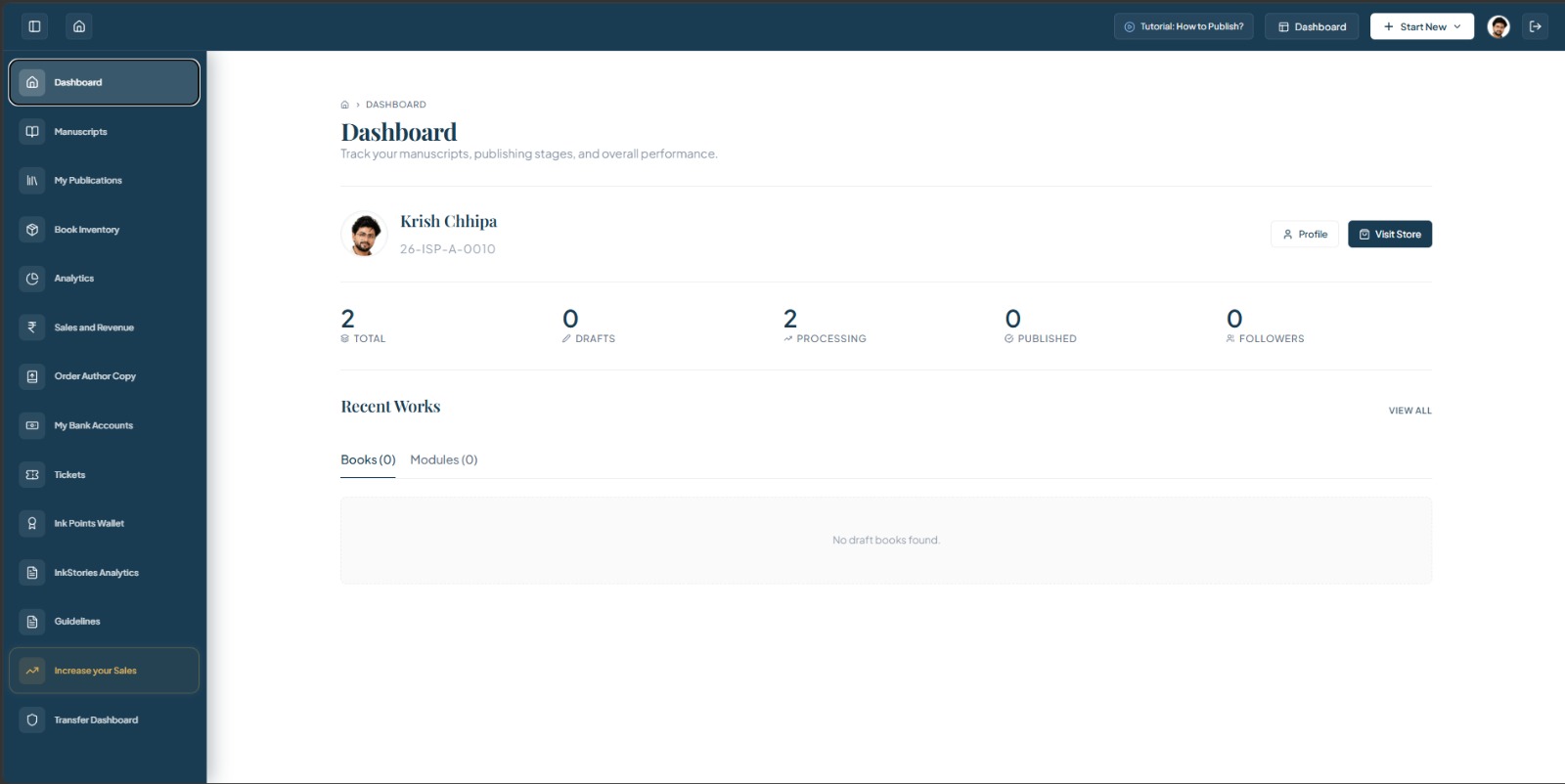
Dashboard
Your main overview area.
Manuscripts
Access and manage your manuscripts.
My Publications
View your published/publication-related content.
Book Inventory
Manage/view available book inventory.
Analytics
View performance-related information.
Sales & Revenue
Track sales and revenue information.
Order Author Copy
Access/order author copies.
My Bank Accounts
Manage your configured bank account information.
Tickets
Access support tickets.
Ink Points Wallet
View and manage Ink Points information.
InkStories Analytics
Access InkStories-related analytics.
Guidelines
Access publishing guidelines/resources.
Increase Your Sales
Access sales-growth/promotional resources.
Dashboard Quick Actions
The dashboard contains high-level actions that are accessible directly from the main view:
Profile
Open your author profile and manage profile-related information.
Visit Store
Access the relevant author/storefront view.
Start New
Use this action to begin a new available author activity.
Dashboard Overview Cards
Total
Shows the total number of relevant works/items associated with your account.
Drafts
Shows items currently saved as drafts.
Processing
Shows items currently going through the publishing/processing workflow.
Published
Shows items that have reached the published state.
Followers
Shows your current follower count if available.
Recent Works
This area provides quick access to your recent author activity and content, allowing you to pick up exactly where you left off.
Books Tab
Displays your most recently active or created book projects.
Modules Tab
Displays your recent serialized content or modular projects.
Manuscripts
Track status, reviews, pending actions, and publication history.
Manage Your Manuscripts
The Manuscripts section gives you a central view of your book projects and their current publishing status. From here, you can review your projects, identify pending actions, continue incomplete submissions, and track books that have already moved forward in the publishing process.
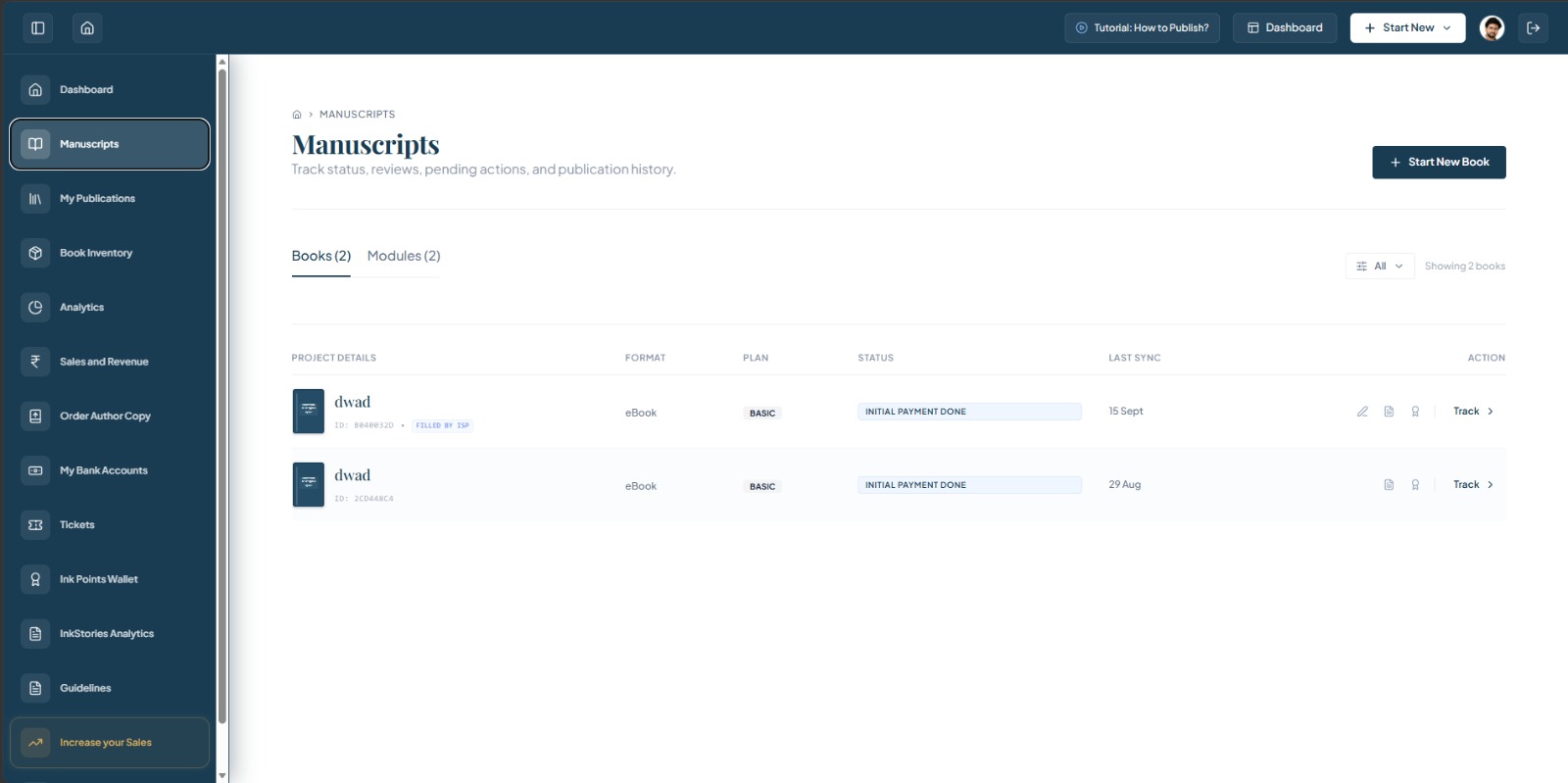
Start New Book
The button used to begin creating/starting a new book project.
Books Tab
Displays the book projects available in the Manuscripts section.
Modules Tab
Displays the available modules associated with the Manuscripts area.
Filter
The filter control allows the displayed manuscript/project list to be filtered.
Project Details
This area identifies each manuscript/project.
Format
Shows the format associated with the manuscript.
Plan
Shows the publishing plan associated with the manuscript.
Status
Shows the current status of the manuscript/project.
Last Sync
Shows when the manuscript/project information was last synchronized/updated.
Action
The Action area provides actions available for the individual manuscript.
Understanding Manuscript Status
The status shown for a manuscript tells you what stage the project is currently in and whether any action is required from you.
Action Required
Action Required indicates that the manuscript currently needs an action from the author. You should use the available action, such as Continue, to proceed with the required step.
Initial Payment Done
Initial Payment Done indicates that the initial payment associated with the project has been completed. The manuscript may then provide a Track action for following its progress.
Understanding Manuscript Rows
Project Details
Identifies the book/manuscript and its project ID.
Format
Shows the selected book format.
Plan
Shows the publishing plan associated with the project.
Status
Shows the current stage/status.
Last Sync
Shows the latest synchronization date.
Action
Shows what the author can currently do with that manuscript.
Continue Your Manuscript
When a manuscript displays Continue, it means the project has an available next step that can be continued from the Manuscripts page.
Click Continue to return to the relevant publishing workflow and complete the pending step.
Track Your Manuscript
When a manuscript displays Track, you can use this action to follow the progress of the project.
Click Track to view the available progress/status information for the manuscript.
Start a New Book
The Manuscripts page provides a + Start New Book action.
Use Start New Book when you want to begin a new book project.
Note: The exact publishing flow that follows this action is documented separately in the publishing/submission guide.
Books and Modules
The Manuscripts page currently provides two tabs:
Books
Use the Books tab to view your book manuscript/projects.
Modules
Use the Modules tab to view available module-related items.
Filter Your Manuscripts
The Manuscripts page includes a filter control. The current interface displays an All option.
Use the filter control to adjust which manuscript/project entries are displayed.
Important Note
Your available actions may vary depending on the current status of your manuscript.
For example, one manuscript may show Continue, while another may show Track.
Author Workflow
My Publications
Manage your published books and modules from one place.
Manage Your Published Books
The My Publications section gives you a central view of your published books and modules. You can review publication details, format and SKU information, pricing, available stock, publication status and access additional details for each publication.
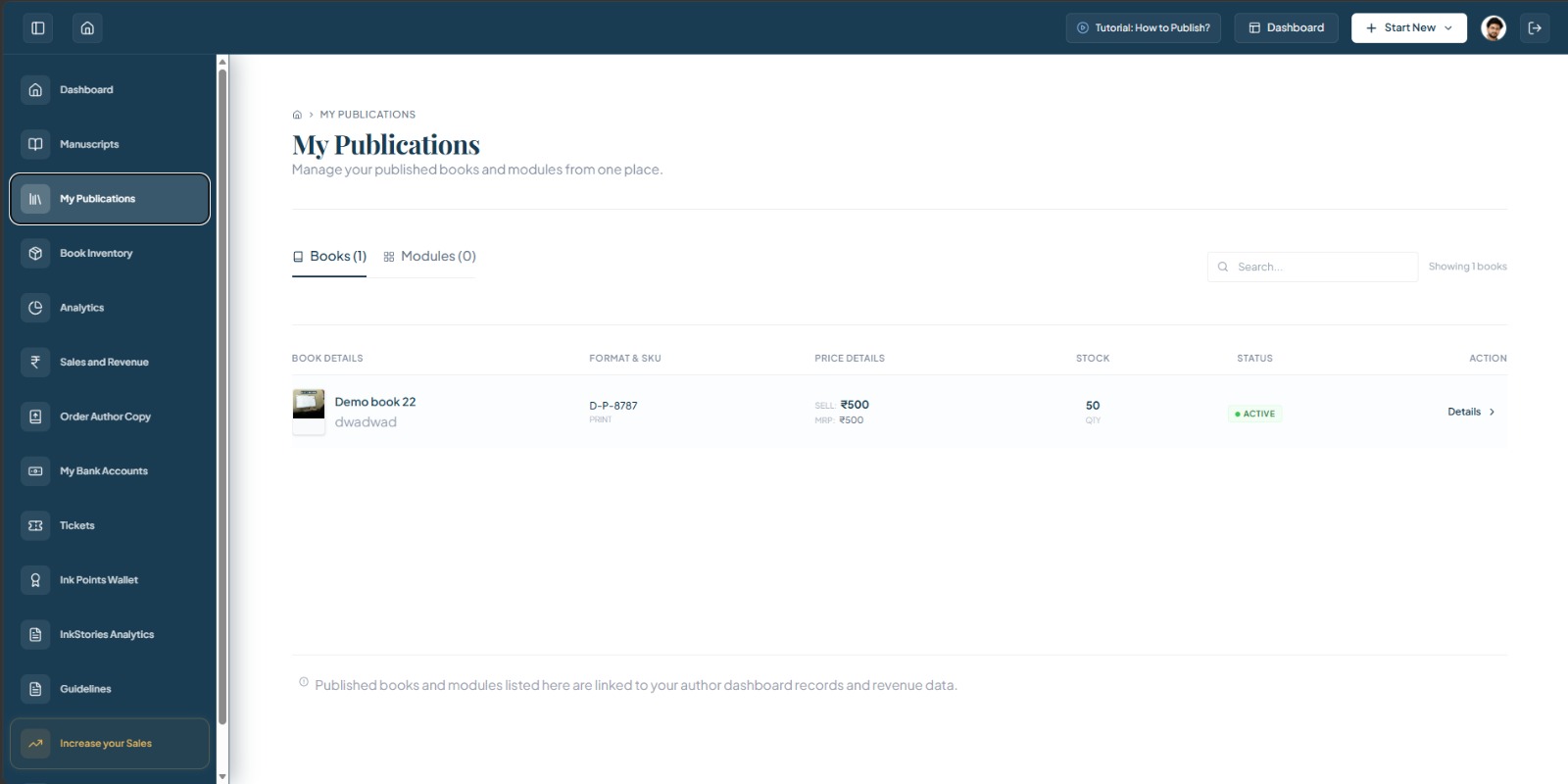
Books
The Books tab displays your published books. Example: Books (1).
Modules
The Modules tab provides access to published modules. Example: Modules (0).
Search
The Search field allows you to search the displayed publications.
Book Details
This column identifies the publication, including cover and title.
Format & SKU
Helps identify the publication format (e.g., PRINT) and its associated SKU.
Price Details
Displays pricing information associated with the publication (SELL & MRP).
Stock
Shows the quantity currently recorded for the publication.
Status
The status indicator shows the current state of the publication (e.g., ACTIVE).
Details
Use Details to open additional information about the selected publication.
View Your Published Books
The Books tab provides a list of your published book entries.
Each publication row provides a quick overview of:
- Book details
- Format
- SKU
- Price
- Stock
- Status
- Available actions
View Your Modules
The Modules tab provides access to published modules associated with your account.
If you have published modules, they will appear in this section.
Search Your Publications
Use the Search field to quickly locate a publication in your list.
Understanding the Publication List
Book Details
Identifies the book and provides its basic publication information.
Format & SKU
Shows the publication format and SKU.
Price Details
Shows the displayed selling price and MRP.
Stock
Shows the currently displayed quantity.
Status
Shows the current publication status.
Action
Provides access to additional publication details.
Understanding Price Details
SELL
The selling price associated with the publication.
MRP
The maximum retail price displayed for the publication.
Understanding Stock
The Stock column shows the quantity currently recorded for the publication.
Note: This is an example of the current UI. The quantity can vary for each publication.
Understanding Publication Status
The status indicator helps you identify the current state of your publication.
ACTIVE
An Active publication is currently shown as active in your publication list.
View Publication Details
The Details action allows you to open more information about a particular publication.
Locate the publication you want to inspect and select Details.
Manuscripts vs. My Publications
| Manuscripts | My Publications |
|---|---|
| Track book projects and publishing progress | View published books and modules |
| Shows publishing-related status | Shows publication information |
| May contain actions such as Continue or Track | Provides publication details |
| Used during the publishing workflow | Used after publication |
Published books and modules listed here are linked to your author dashboard records and revenue data.
Book Detail Page
View and manage the comprehensive details, files, and status of your published books.
Book Record Overview
When you select a book from the "My Publications" list, you are taken to its detailed record page. This page contains all the metadata, files, and publishing information related to that specific title.

Book Detail Page Layout
Header Information
Book Metadata Summary
The top section of the page displays a quick summary of the book:
- Status Badges: Indicates the current status (e.g., ACTIVE, LIVE BOOK RECORD).
- Book Title: The full title of the publication.
- Pricing: The listed price and format (e.g., ₹500 Paperback).
- Publication Date: The date the book was published.
- Language: The language of the manuscript.
- Author: The author's name.
Available Actions
Returns you to the main dashboard or previous page.
Allows you to request a digital ebook format if one is not currently available.
Detailed Information Sections
The page contains multiple expanding sections (accordions) that organize the book's details. You can click on each section to expand it and view the specific information inside.
Publishing Cost and Payment Status
Displays the financial summary related to the book's publication process. Note: It may show "Financial summary currently unavailable for this record" if no specific costs were tracked or if the data is pending.
Book and Publishing Details
Contains comprehensive metadata about the book, such as ISBN, trim size, page count, paper type, and category.
Manuscript Files
Allows you to view or download the uploaded manuscript, cover files, and any other assets associated with the publication.
Achievements
Showcases any specific milestones, awards, or best-seller tags the book has achieved.
Legal & Agreements
Stores the signed publishing contracts, royalty agreements, and any other legal documents related to the book.
Book Inventory & Analytics
Track your inventory, printing, sales performance, platform-wise sales, and remaining stock for every published book.
Manage Your Book Inventory
The Book Inventory section gives you an overview of your published books and their inventory status. You can monitor printed copies, remaining stock, books currently in printing, sales, and the overall inventory health of each book.
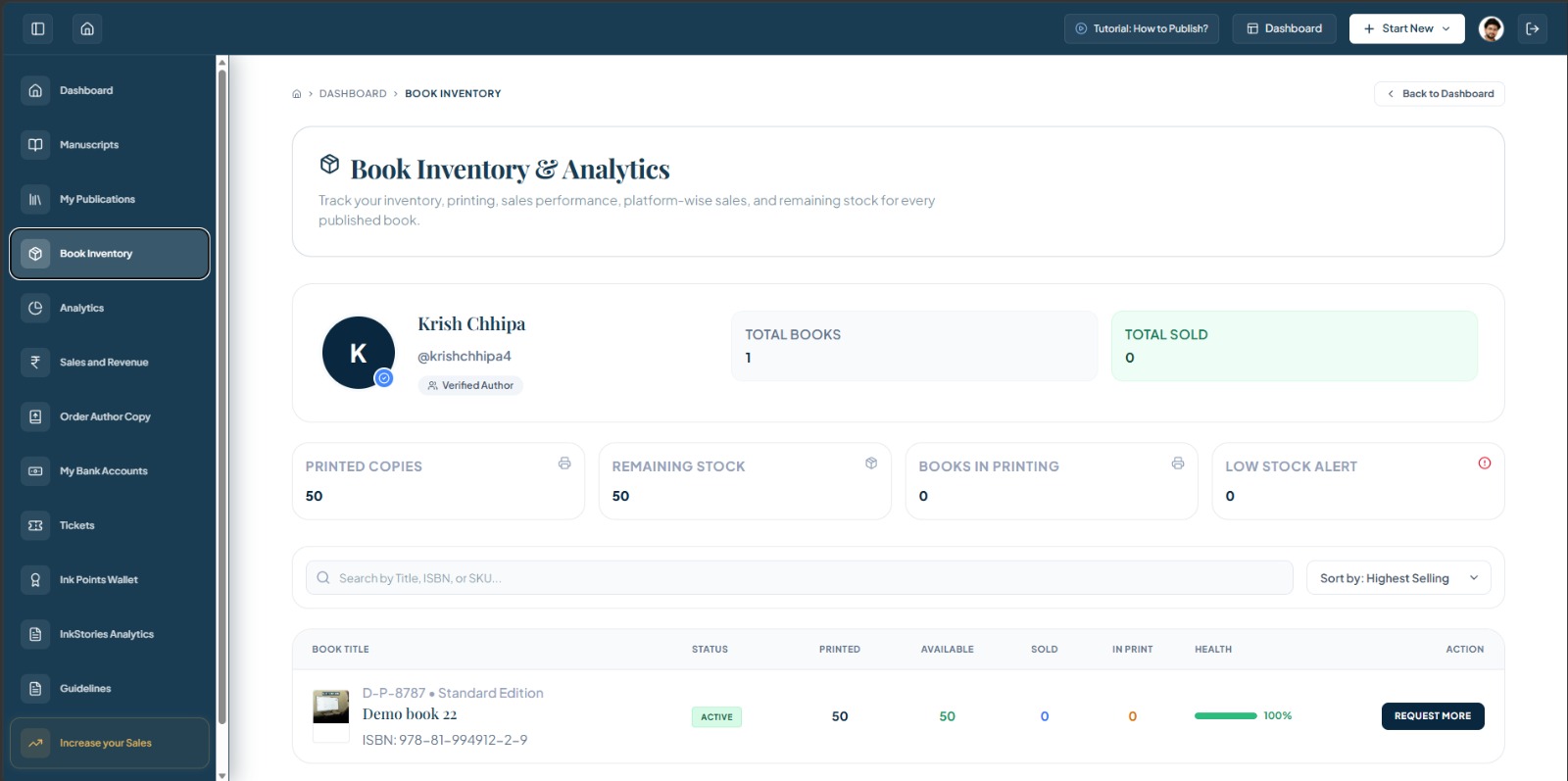
Author Profile
Shows the author associated with the inventory data.
Total Books
This indicates the number of books currently listed in your inventory.
Total Sold
This indicates the total recorded copies sold for the books shown in your inventory.
Printed Copies
Printed Copies indicates the number of copies recorded as printed for your book inventory.
Remaining Stock
Remaining Stock indicates the quantity currently available according to the inventory records.
Books in Printing
This indicates the number of books currently recorded as being in printing.
Low Stock Alert
This indicates how many books currently meet the system's low-stock alert condition.
Search
Use the search field to quickly find a specific book using its title, ISBN, or SKU.
Sort
Use the sorting control to change how your inventory results are ordered.
Book Title
The Book Title section identifies the book and may also display edition and ISBN information.
Status
The status indicator shows the current state of the book in the inventory.
Printed
This represents the number of copies recorded as printed for the book.
Available
Available represents the number of copies currently available according to the inventory system.
Sold
Sold represents the number of copies recorded as sold.
In Print
In Print indicates copies currently recorded as being printed.
Health
The Health indicator provides a quick visual representation of the book's current inventory condition.
Request More
Use Request More when you need additional copies of a book.
Search Your Inventory
Use the search field to quickly find a specific book using its title, ISBN, or SKU.
Sort Your Inventory
Use the sorting control to change how your inventory results are ordered.
Understanding Your Inventory
Book Title
The Book Title section identifies the book and may also display edition and ISBN information.
Status
The status indicator shows the current state of the book in the inventory.
Printed
This represents the number of copies recorded as printed for the book.
Available
Available represents the number of copies currently available according to the inventory system.
Sold
Sold represents the number of copies recorded as sold.
In Print
In Print indicates copies currently recorded as being printed.
Health
The Health indicator provides a quick visual representation of the book's current inventory condition.
Action
Provides the Request More action for additional copies.
Understanding Printed / Available / Sold / In Print
Printed
This represents the number of copies recorded as printed for the book.
Available
Available represents the number of copies currently available according to the inventory system.
Sold
Sold represents the number of copies recorded as sold.
In Print
In Print indicates copies currently recorded as being printed.
Understanding Inventory Health
The Health indicator provides a quick visual representation of the book's current inventory condition.
Request More Copies
Use Request More when you need additional copies of a book.
Inventory Summary
These indicators provide a quick overview of inventory activity.
How to Read Your Inventory
Printed
How many copies have been recorded as printed.
Available
How many copies are currently available.
Sold
How many copies have been recorded as sold.
In Print
How many copies are currently being printed.
Health
A visual inventory-health indicator.
Request More
An action for requesting additional copies.
Workflow
Inventory numbers can change as books are printed, sold, or additional copies are requested.
The exact values shown in your dashboard depend on your current book inventory and account activity.
Author Analytics
Comprehensive performance insights for your published works.
Understand Your Publishing Performance
The Analytics section helps you review performance information for your published works. Use filters to narrow the data by book, time period, or format, then switch between graphical and statistical views to understand your results.
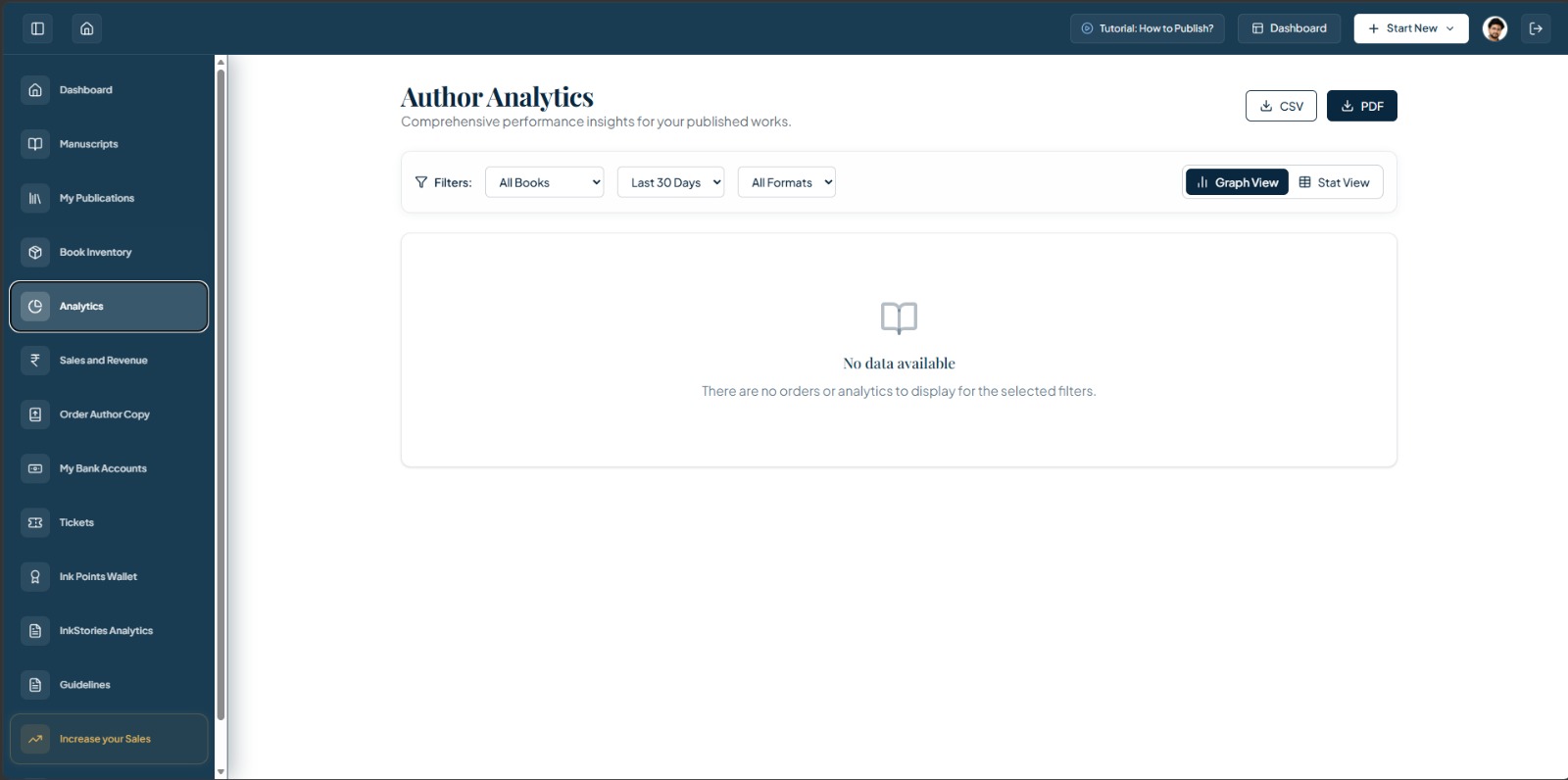
Author Analytics
The main analytics area for reviewing performance insights.
CSV Export
Use CSV to export the available analytics data in CSV format.
PDF Export
Use PDF to export the available analytics information as a PDF.
Filters
The Analytics page provides filtering controls to narrow the displayed analytics.
Book Filter
Use the book filter to select which book's analytics you want to view. (e.g. All Books)
Date Range
Use the date-range filter to select the period for which you want to view analytics. (e.g. Last 30 Days)
Format Filter
Use the format filter to narrow analytics according to the available publication formats. (e.g. All Formats)
Graph View
Graph View presents available analytics in a visual/chart-based format.
Stat View
Stat View provides analytics in a statistical/data-oriented presentation.
Analytics Result Area
When there is no analytics or order data matching the selected filters, the dashboard displays a No Data Available state instead of charts or statistics.
How to Check Your Analytics
Step 1 — Open Analytics
Open Analytics from the Author Dashboard sidebar.
Step 2 — Select a Book
Choose All Books or a specific available book.
Step 3 — Select a Date Range
Choose the time period you want to analyse.
Step 4 — Select a Format
Choose All Formats or a specific available format.
Step 5 — Choose a View
Select Graph View or Stat View.
Step 6 — Review Results
Review the analytics displayed for the selected filters.
Step 7 — Export if Required
Use CSV or PDF to export available analytics.
Use Filters to Focus Your Analysis
| Filter | Purpose |
|---|---|
| All Books | Select which book data to analyse |
| Last 30 Days | Select the analytics period |
| All Formats | Select the publication format |
Graph View vs Stat View
| Graph View | Stat View |
|---|---|
| Visual representation of analytics | Data/statistical representation |
| Useful for spotting trends visually | Useful for reviewing numerical/statistical information |
| Chart-based presentation | Statistical presentation |
What Does "No Data Available" Mean?
This message means that the current filter selection does not have analytics or order data available to display.
Try a different book
If a specific book is selected, try All Books.
Try a different date range
If the selected period has no activity, choose another available period.
Try another format
If a specific format is selected, try All Formats.
Check again later
Analytics may become available as activity is recorded in the system.
Export Your Analytics
CSV
Use the CSV option when you want analytics data in a spreadsheet/data-friendly format.
Use the PDF option when you want a report-style document.
Analytics Workflow
Sales & Revenue
Snapshot-secure publishing earnings.
Track Your Sales & Earnings
Your Revenue Overview
Use Sales & Revenue to understand your publishing earnings and sales activity. The page provides a quick summary of your wallet balance, earnings, sales and available publication data.
Use the publication-level section to review quantity and net royalty information for individual books or modules.
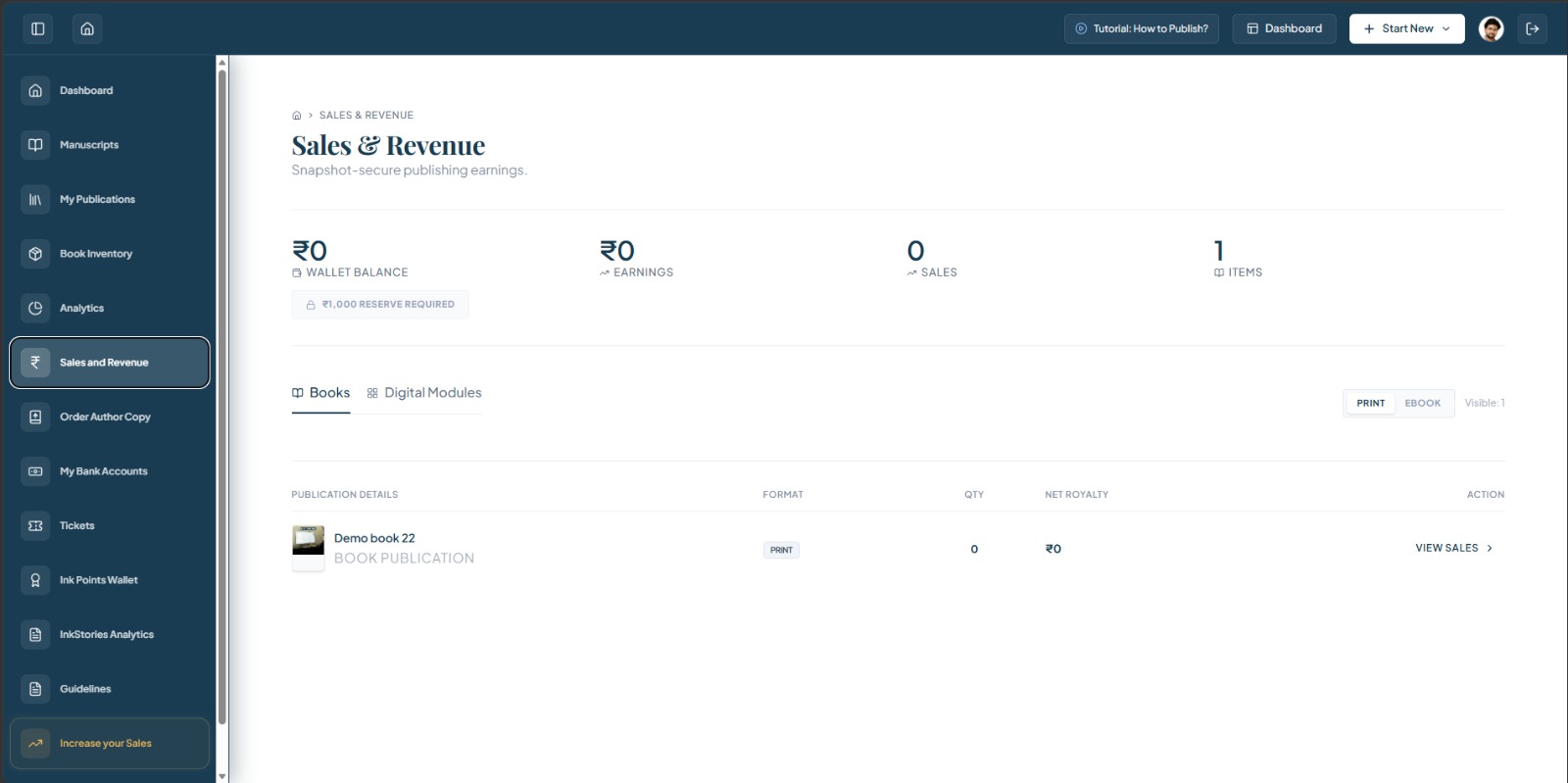
Wallet Balance
Wallet Balance shows the current balance recorded in your publishing wallet.
Earnings
Earnings shows the earnings recorded for your account.
Sales
Sales shows the recorded number of sales.
Items
Items indicates the number of relevant publication items shown in the current revenue area.
Reserve Required
The dashboard may display a reserve requirement associated with the account.
Books
Use the Books tab to review revenue information associated with book publications.
Digital Modules
Use the Digital Modules tab to review revenue information associated with digital modules.
Print / eBook
Use the format selector to switch between the available publication formats.
Visible Count
The Visible count indicates how many publication entries are currently displayed in the selected view.
Publication Details
Publication Details identifies the book or publication associated with the revenue information.
Format
The Format column identifies the publication format associated with the displayed entry.
Qty
Qty shows the quantity recorded for the selected publication/revenue view.
Net Royalty
Net Royalty shows the net royalty amount recorded for the publication.
View Sales
Use View Sales to open the sales information associated with the selected publication.
Your Sales Snapshot
The top summary provides a quick overview of:
| Metric | What it shows |
|---|---|
| Wallet Balance | Current recorded wallet balance |
| Earnings | Recorded earnings |
| Sales | Recorded sales activity |
| Items | Publication items represented in the current view |
| Reserve Required | Reserve amount shown by the system, when applicable |
Choose What You Want to Review
Books
Use the Books tab to review revenue information associated with book publications.
Digital Modules
Use the Digital Modules tab to review revenue information associated with digital modules.
Choose a Publication Format
Use the format selector to switch between the available publication formats.
eBook
Publication-Level Revenue
Visible Results
The Visible count indicates how many publication entries are currently displayed in the selected view.
Publication Details
Publication Details identifies the book or publication associated with the revenue information.
Format
The Format column identifies the publication format associated with the displayed entry.
Understanding Qty & Net Royalty
Quantity
Qty shows the quantity recorded for the selected publication/revenue view.
Net Royalty
Net Royalty shows the net royalty amount recorded for the publication.
View Sales
Use View Sales to open the sales information associated with the selected publication.
How to Check Your Revenue
Step 1
Open Sales & Revenue from the Author Dashboard sidebar.
Step 2
Choose Books or Digital Modules depending on what you want to review.
Step 3
Select the required format: Print or eBook.
Step 4
Review the publication-level information. Check Qty and Net Royalty.
Step 5
If you need more information about a specific publication, select View Sales.
Sales & Revenue Workflow
The amounts and quantities displayed in Sales & Revenue are based on the activity recorded for your account and may change as sales and revenue activity is updated.
Sales Details
Review the complete sales breakdown and net royalty earnings for a specific publication.
Publication Sales Overview
When you click on a specific book from the main Sales & Revenue dashboard, you are directed to this detailed breakdown page. It provides an isolated view of that book's performance.

Sales Details Dashboard
Page Layout & Information
Header Summary
The top section contains a navigation button ("Back to Sales & Revenue") and a summary card that highlights the total performance of the book at a glance:
- Net Royalty: The total earning generated from this specific publication.
- Units Sold: The total number of copies sold across all formats.
Book Information Card
This card displays the core details of the publication to ensure you are viewing the correct data:
- Cover Image: Visual confirmation of the book.
- Format Badges: Indicates the available formats (e.g., PRINT, BOOK).
- Title: The name of the publication.
- Units Sold: Specific count for this title.
- Total Royalty: Specific earnings for this title.
- Status: Current publishing status (e.g., Published) indicated with a green dot.
Sales Breakdown Table
The bottom section provides a detailed earnings table for the publication. If sales data is available, it breaks down the performance by format or plan.
Table Columns:
| FORMAT / PLAN | LAST UPDATED ON | QTY | NET ROYALTY |
|---|---|---|---|
| No detailed sales data available for this book. | |||
The summary footer dynamically calculates the totals across all formats listed in the table.
Campaign Leaderboards
Track your stories' performance and rankings across promotional campaigns.
Select Campaign
Choose a campaign to view participating stories and current rankings.
Order Author Copies
Order your own books at printing cost. No royalties generated.
Author-copy orders do not generate royalties.
Before You Order
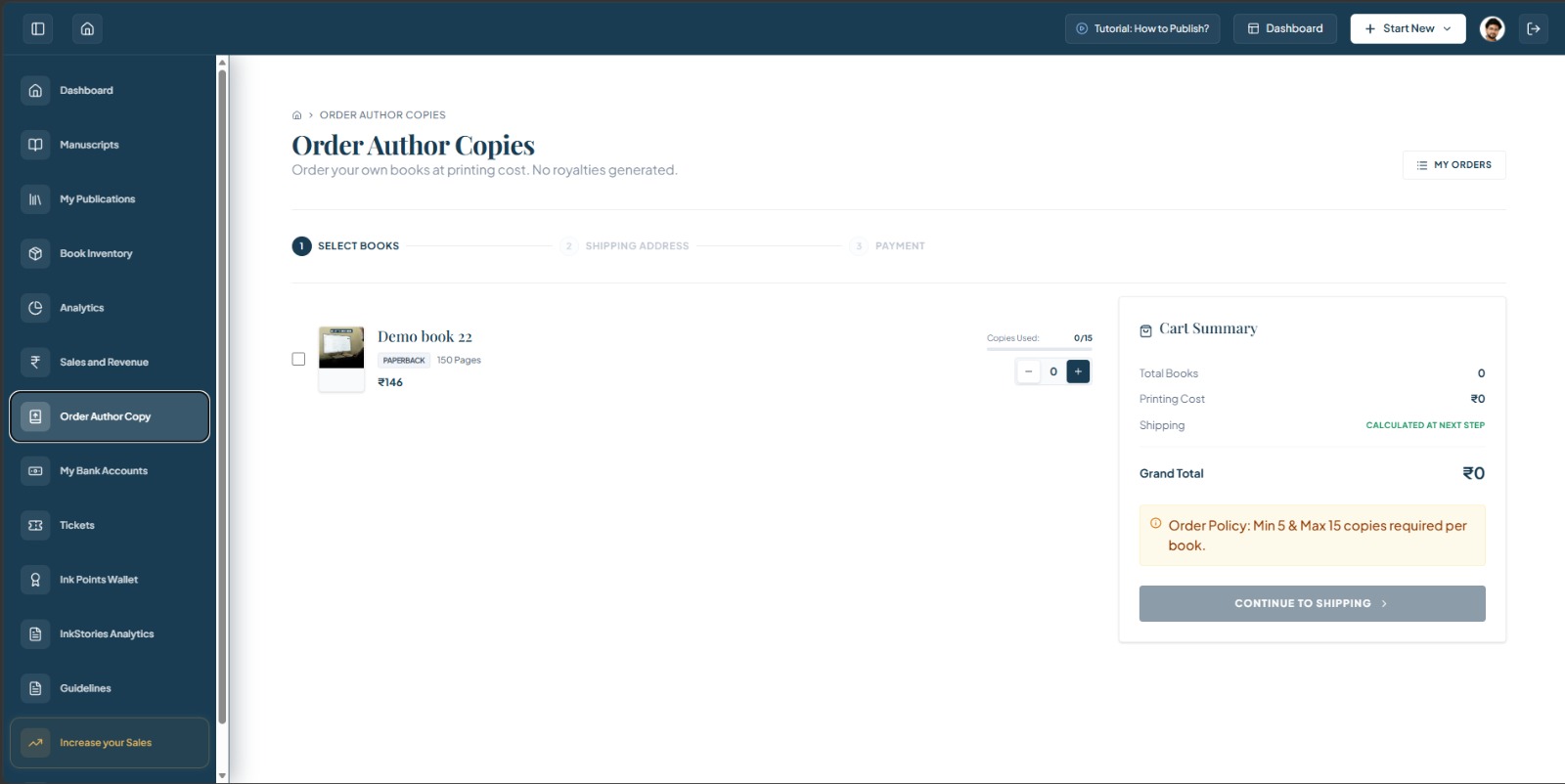
My Orders
Use My Orders to access your existing author-copy orders.
Step 1 — Select Books
Start by selecting the book you want to order and choosing the required quantity.
Step 2 — Shipping Address
After selecting your books and quantity, continue to provide the shipping address.
Step 3 — Payment
Payment is the final step of the author-copy ordering process.
Book Information
Review the details (format, page count, per-copy price) before selecting the quantity of copies you want to order.
Copies Used
Copies Used indicates how many copies have been used against the allowed author-copy quantity for the selected book.
Quantity Selector
Use the minus and plus controls to decrease or increase the number of copies you want to order.
Cart Summary
Review the Cart Summary before continuing to the shipping step.
Total Books
Total Books shows the total number of copies currently selected for the order.
Printing Cost
Printing Cost shows the current printing cost calculated for the selected author copies.
Shipping
Shipping charges are calculated at the next step after you continue to the shipping stage.
Grand Total
Grand Total shows the current order total based on the charges available at this stage.
Continue to Shipping
Select Continue to Shipping to move to the Shipping Address step.
Select the Book You Want to Order
Select the book you want to order. The book entry displays relevant publication information such as format, page count and the applicable per-copy price.
Book Information
The selected book may display:
- Book title
- Format
- Page count
- Per-copy printing cost
Review these details before selecting the quantity of copies you want to order.
Select Quantity
Copies Used
Copies Used indicates how many copies have been used against the allowed author-copy quantity for the selected book.
Quantity Selector
Use the minus and plus controls to decrease or increase the number of copies you want to order.
Author Copy Order Policy
Each book requires a minimum order of 5 copies and a maximum order of 15 copies.
Review Your Cart
The right-side Cart Summary provides an overview of the current order. Review the Cart Summary before continuing to the shipping step.
| Item | What it shows |
|---|---|
| Total Books | Total Books shows the total number of copies currently selected for the order. |
| Printing Cost | Printing Cost shows the current printing cost calculated for the selected author copies. |
| Shipping | Shipping charges are calculated at the next step after you continue to the shipping stage. |
| Grand Total | Grand Total shows the current order total based on the charges available at this stage. (May change after shipping is calculated). |
Continue to Shipping
Once you have selected the required book quantity and reviewed the Cart Summary, select Continue to Shipping to move from Step 1 (Select Books) to Step 2 (Shipping Address).
How to Order Author Copies
Select Books
Choose the book you want to order.
Select Quantity
Use the quantity controls to select the required number of copies. (Min: 5, Max: 15 per book).
Review Cart Summary
Check Total Books, Printing Cost, Shipping, and Grand Total.
Continue to Shipping
Select Continue to Shipping.
Enter Shipping Address
Complete the shipping information required by the application.
Proceed to Payment
Review the order and proceed through the payment step.
Author Copies Are Different From Customer Sales
| Author Copies | Normal Book Sales |
|---|---|
| Ordered by the author | Purchased by customers |
| Intended for the author's own use | Intended for customers/readers |
| Ordered at printing cost | Normal sale pricing applies |
| No royalties generated | Sales may generate royalties according to the platform's rules |
Example Order
Example based on screenshot
If you select 10 copies at ₹146 per copy, the printing cost shown is ₹1,460.
Shipping is calculated at the next step.
Saved Banks
Manage payout destinations and settlement accounts.
Keep your banking information secure. Only enter your details through the official bank-account setup flow provided inside your author dashboard.
Manage Your Payout Account
The Saved Banks section is used to manage the bank accounts associated with your publishing payouts and settlements.
Add a bank account when you need to set up a destination for receiving eligible payouts from your publishing activity.
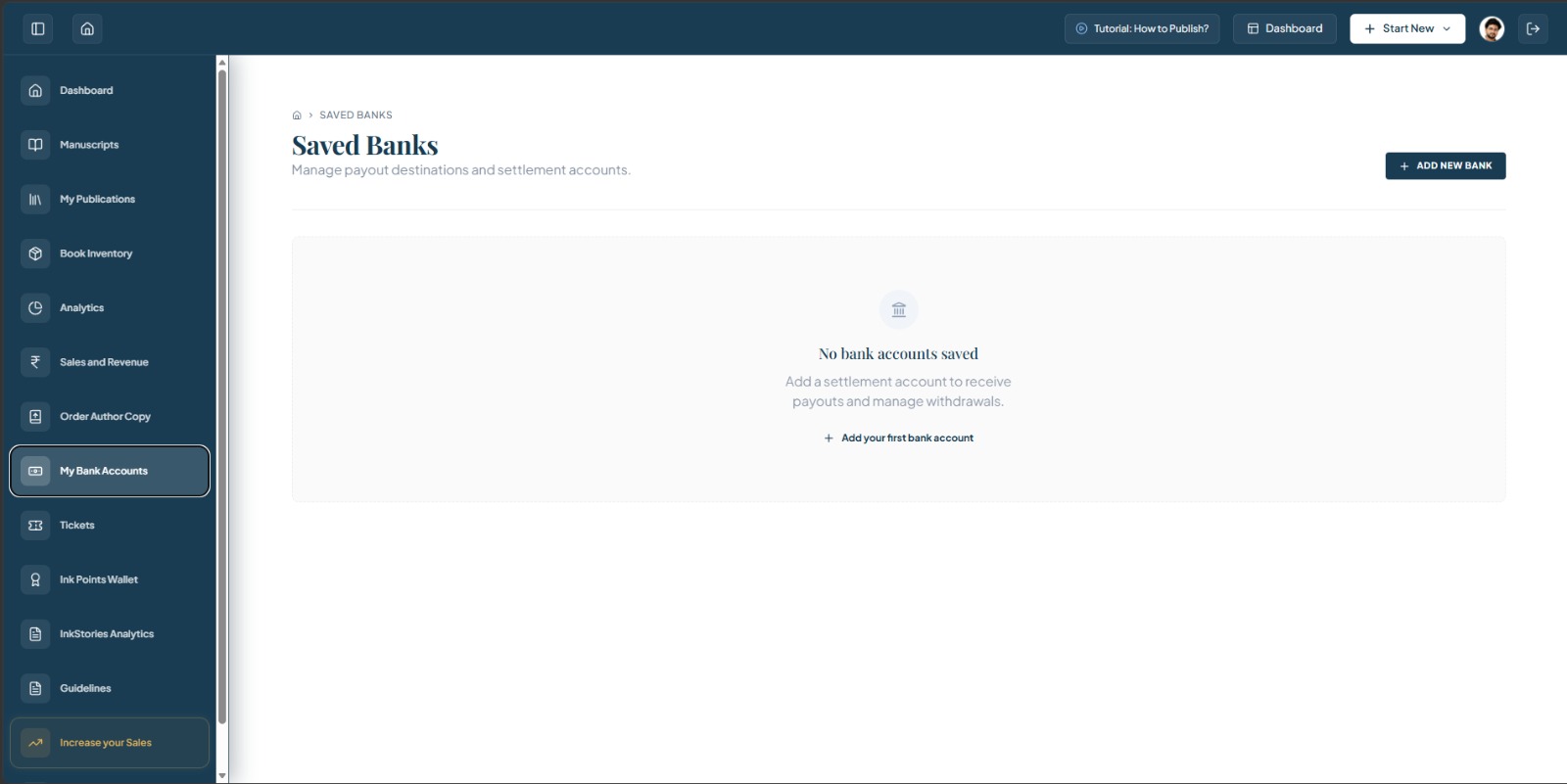
Saved Banks
Saved Banks is the section where your payout and settlement bank accounts are managed.
Add New Bank
Select Add New Bank to begin adding a bank account for payout/settlement purposes.
No Bank Accounts Saved
This message appears when no bank account has been added to your account yet.
Settlement Account Explanation
A settlement account is used as a destination for eligible payouts and can be used for managing withdrawals.
Add Your First Bank Account
Select this option to begin adding your first bank account.
No Bank Accounts Saved
If you have not added a bank account yet, the page displays an empty state:
The page then provides an option to:
Use this option to start setting up a settlement account.
Add a New Bank Account
The current empty state provides two visible entry points to start the bank-account setup process:
Option 1
+ ADD NEW BANK
Located at the top-right of the page.
Option 2
+ Add your first bank account
Located inside the empty-state section.
Use either option to start the bank-account setup process.
Why Add a Bank Account?
A saved bank account provides a payout destination for eligible publishing earnings and settlement activity.
The application describes the account as being used to:
- receive payouts
- manage withdrawals
Empty State Workflow
After You Add a Bank
Once a bank account has been successfully added, the empty state should no longer be shown and the saved bank account can be managed from this section.
Author Help Desk
Raise a query and track its resolution status.
Need Help With Your Publishing Account?
The Author Help Desk allows you to raise a support query directly from your dashboard and keep track of your submitted queries.
You can:
- raise a new support ticket
- describe your issue
- provide your mobile number
- review recent queries
- use the available support contact option when needed
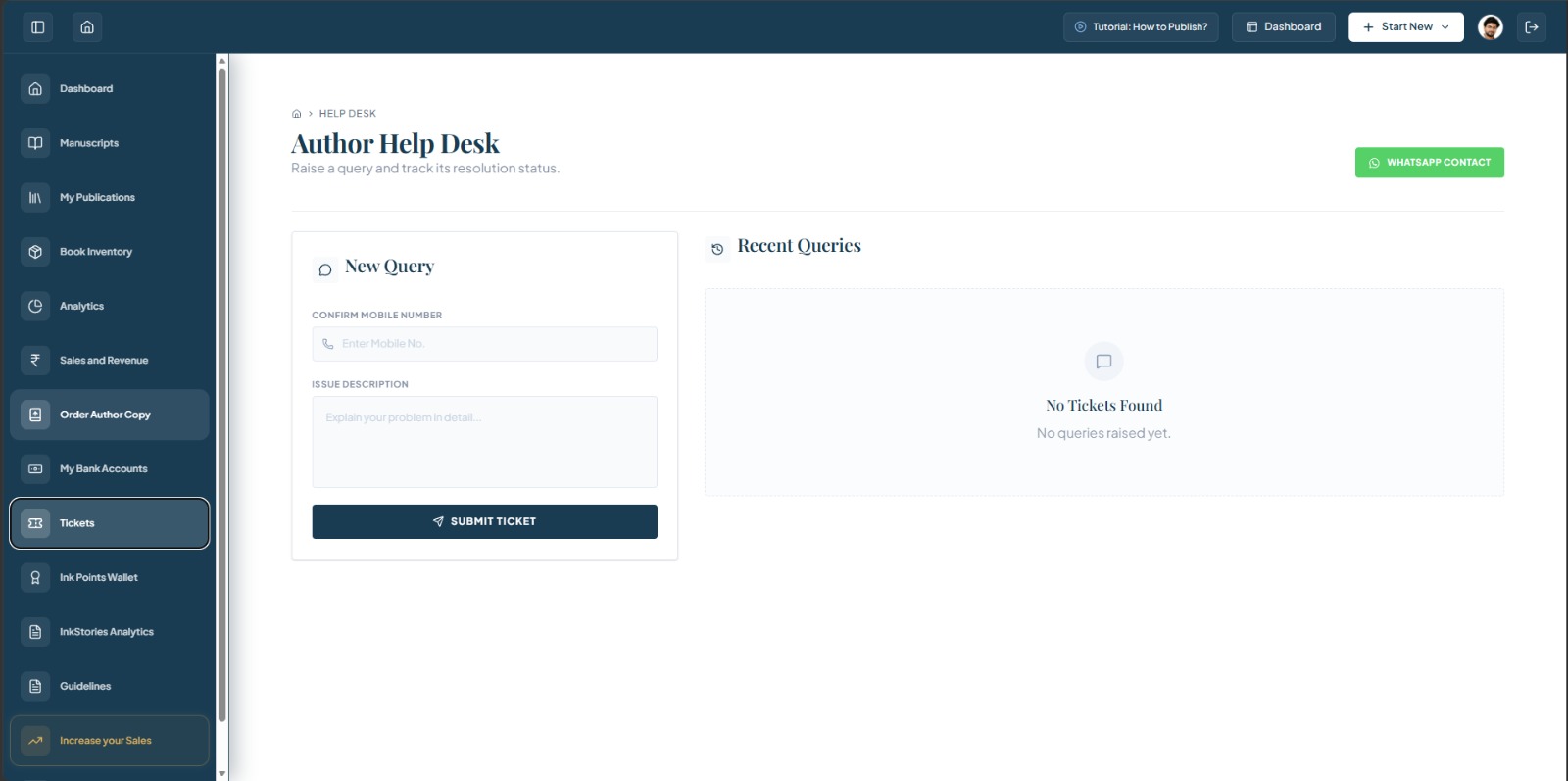
WhatsApp Contact
WhatsApp Contact provides an additional way to contact support.
New Query
Use New Query to raise a support ticket from your author dashboard.
Confirm Mobile Number
Enter your mobile number in the provided field.
Issue Description
Clearly describe the issue you are facing. Include enough relevant information for the support team to understand and investigate the problem.
Submit Ticket
After entering the required information and describing your issue, select Submit Ticket to raise the support request.
Recent Queries
Recent Queries displays previously submitted support requests when available.
Empty Ticket State
This empty state appears when there are currently no support queries available in the list.
Raise a New Query
Open Tickets
Open Tickets from the Author Dashboard sidebar.
Enter Your Mobile Number
Enter your mobile number in: Confirm Mobile Number.
Describe Your Issue
Use Issue Description to explain the problem clearly.
Review Your Information
Make sure your mobile number and issue description are correct.
Submit
Select Submit Ticket. Your query is then submitted through the Help Desk.
Write a Clear Support Query
Please do not simply write "It's not working." Instead, provide a useful description using this structure:
[Describe the action]
[Describe what happened]
[Describe what you expected]
[Book name / manuscript / screen / error message]
Important: Do not request or include passwords, OTPs, complete bank-account information, payment credentials, or other sensitive information in your ticket.
Example Support Query
This is an example of a clear support description.
Track Your Support Queries
The Recent Queries section allows you to review your submitted support requests when records are available.
If there are no submitted queries, the page displays:
No Tickets Found
No queries raised yet.
Additional Support Through WhatsApp
WHATSAPP CONTACT
Use WhatsApp Contact when you need to reach the available support channel outside the ticket form.
When to Contact the Help Desk
- You cannot proceed to the next publishing step.
- A dashboard feature is not working as expected.
- You encounter an unexpected error.
- You need help understanding an account-related issue.
- A publishing workflow appears to be stuck.
Before You Submit
Ticket Workflow
Understanding the Help Desk Screen
When You Have No Queries
The screen shows:
When You Have Existing Queries
Submitted queries can appear under:
Ink Points Wallet
Manage your Ink Points earned through your publications.
What is the Ink Points Wallet?
Ink Points Wallet is the section where authors can view and manage the Ink Points earned through their publishing activity.
The wallet provides an overview of:
- current Ink Points balance
- lifetime points earned
- lifetime points redeemed
- current wallet value
- transaction history
- wallet history
- reward and redemption information
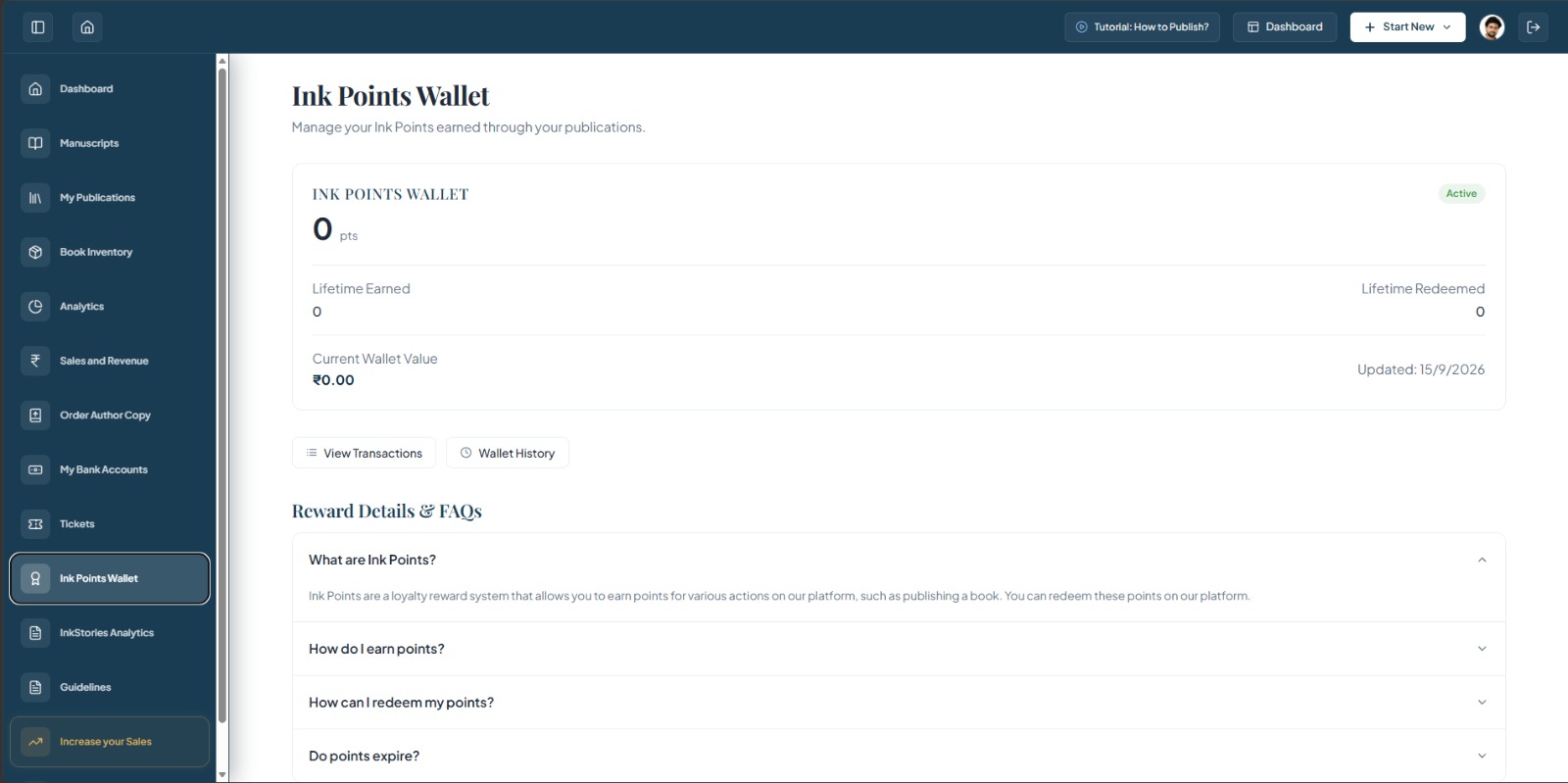
Current Points Balance
This number represents the Ink Points currently available in the wallet.
Wallet Status
The status indicates that the Ink Points Wallet is currently active.
Lifetime Earned
This shows the total Ink Points earned over the lifetime of the account.
Lifetime Redeemed
This shows the total Ink Points that have already been redeemed.
Current Wallet Value
This shows the current monetary value represented by the available Ink Points.
Updated Date
The updated date indicates when the wallet information was last updated.
View Transactions
Use View Transactions to inspect available wallet transaction records.
Wallet History
Wallet History provides access to the wallet's historical activity.
Understanding Your Wallet
| Wallet Information | What It Means |
|---|---|
| Current Points | Points currently available |
| Lifetime Earned | Total points earned |
| Lifetime Redeemed | Total points redeemed |
| Current Wallet Value | Current value of available points |
| Status | Current wallet status |
Reward Details & FAQs
This section provides answers about what Ink Points are, how points are earned, how points can be redeemed, and whether points expire.
What Are Ink Points?
How Do I Earn Ink Points?
How Can I Redeem My Points?
Redemption Rule
Up to 50% of the wallet balance can be redeemed on a single transaction.
Do Ink Points Expire?
Transactions and Wallet History
View Transactions
Used to access available transaction records.
Wallet History
Used to access historical wallet activity.
The exact information displayed in these sections may depend on your account activity.
Before Redeeming Points
Check the current redemption rules displayed in your dashboard before completing a transaction. Redemption eligibility and limits should be based on the rules currently shown by the platform.
Illustrative Example
If your wallet contains 1,000 eligible Ink Points/value units, the currently displayed rule allows redemption of up to 50% of the wallet balance in a single transaction.
Common Questions
What is my current Ink Points balance?
Your current balance is shown prominently at the top of the Ink Points Wallet.
Where can I see points I have earned?
Check Lifetime Earned and available wallet transaction/history sections.
Where can I see redeemed points?
Check Lifetime Redeemed and the available wallet history/transaction records.
Can I redeem my entire wallet balance?
The current interface states that up to 50% of the wallet balance can be redeemed in a single transaction.
Is the wallet currently active?
Check the status indicator shown beside the wallet balance.
Where can I find the redemption rules?
Open Reward Details & FAQs and review the Redemption Rules information.
Book Publishing Guidelines
Please read the following guidelines carefully before submitting your manuscript for book publishing on InkSight Publication. These guidelines help ensure accuracy, transparency, and a smooth publishing process.
1. Manuscript Submission
- Manuscripts can be submitted in typed format (DOCX or PDF) or handwritten format (clearly scanned PDF).
- Handwritten manuscripts must be neatly written, properly scanned, and clearly readable.
- The minimum required length for a book is 40 pages.
- Authors must provide a realistic page estimate, as page count directly affects cost, pricing, and royalties.
- Manuscripts must be original, unpublished, and free from plagiarism.
- Ensure all images, charts, and diagrams are high-resolution (minimum 300 DPI) for clear printing.
- The final manuscript should be submitted only through the Official Author Dashboard.
2. Basic Structure of a Book Manuscript
(Recommended Manuscript Structure for Authors)
To ensure smooth editing, typesetting, and publishing, authors are advised to organize their manuscripts using the following standard book structure.
a. Front Matter (Preliminary Pages)
Front matter appears before the main content of the book. Typical components include:
- Title Page
- Book Title
- Subtitle (if any)
- Author Name(s)
- Publisher Name (InkSight Publication)
- Copyright Page
- Copyright notice
- ISBN (if applicable)
- Edition details
- Publisher information
- Dedication Page (Optional)
A short dedication by the author.
- Preface / Author's Note (Optional)
Author explains the purpose, background, or motivation for writing the book.
- Acknowledgment (Optional)
Recognition of individuals or institutions who supported the work.
- Table of Contents
List of chapters and sections with page numbers.
- List of Figures / Tables (If applicable)
b. Main Content (Body of the Book)
This is the core part of the book. Typical structure:
- Introduction
- Overview of the topic
- Objectives of the book
- Intended audience
- Chapters
Organized logically with clear headings and subheadings. Each chapter should focus on a specific topic.
Typical chapter format:- Chapter Title
- Section headings
- Subsections
- Figures / Tables (if needed)
- Examples / explanations
c. Back Matter (End Sections)
Back matter appears after the main chapters. Common elements include:
- Conclusion / Summary
Key insights or final thoughts.
- Appendices (Optional)
- Supplementary material
- Data tables
- Extended explanations
- Glossary (Optional)
Definitions of important terms.
- References / Bibliography
Sources used in the book.
- Index (Optional but useful for academic books)
Book Size (Trim Size)
- Authors must select a Book Size (Trim Size) from the approved size options available on the platform.
- Each trim size is recommended for specific book categories such as fiction, academic, technical, or professional books.
- Custom or unlisted sizes are not supported.
- Once production begins, trim size cannot be changed.
Available Trim Sizes
Paper Material (Paper Type)
Authors can choose from the following paper materials:
- White Paper – suitable for academic and technical books
- Cream Paper – suitable for fiction and non-fiction reading
- Natural Paper – suitable for journals and workbooks
Paper material impacts reading comfort, appearance, and print quality.
Paper Thickness (GSM)
Paper thickness is measured in GSM (grams per square meter).
Available GSM options are: 70 GSM, 80 GSM, 100 GSM
- Higher GSM provides thicker pages, better durability, and premium feel.
- Lower GSM keeps the book lighter and more cost-effective.
Authors should choose GSM based on content type, page count, and budget.
Binding Type
- Binding options are limited to those shown on the platform (e.g., Paperback, Hardbound).
- Binding choice affects durability, handling, and final book cost.
Cover Design
Authors may:
- Upload their own print-ready cover design, or
- Choose InkSight's professional cover design service at a nominal charge.
All covers must meet print specifications to avoid delays or revisions.
© ISBN & Copyright
- ISBN and Copyright registration are optional and author-controlled.
- If the author already owns an ISBN or copyright, valid ISBN details and identity proof must be submitted.
- If not, InkSight can assist with ISBN and copyright application upon request.
- ISBN is mandatory for commercial print distribution.
Cost, Royalty & Advance Payment
Pre-publishing cost and royalty are calculated based on:
- An advance payment (10 to 40%) of the pre-publishing cost is required to initiate editing and production.
- The remaining amount is payable before printing or final release.
Author Acknowledgement
By proceeding with submission, the author confirms that:
- The manuscript is original and accurate.
- All selected specifications are final.
- The author agrees to InkSight's publishing process, costs, and terms.
- InkSight Publication reserves the right to pause or stop the publication process if any submitted information or documents are found to be inconsistent or incorrect.
Important Reminder
Your choices of book size, paper type, GSM, and binding directly affect the quality, cost, and reader experience of your book.
Regd Office: 8 – A – 9, Karamchari Colony, Bhilwara – 311 001 (India).
Increase Your Sales
Explore options to promote your publication, incentivize buyers, and drive higher store conversions.
Grow Your Readers & Revenue
The Increase Your Sales section provides promotional tools that authors can use to increase visibility, encourage purchases, and improve conversions for their published books.
The current dashboard provides three promotional options:
- Digital Marketing
- Coupon Manager
- Free Shipping
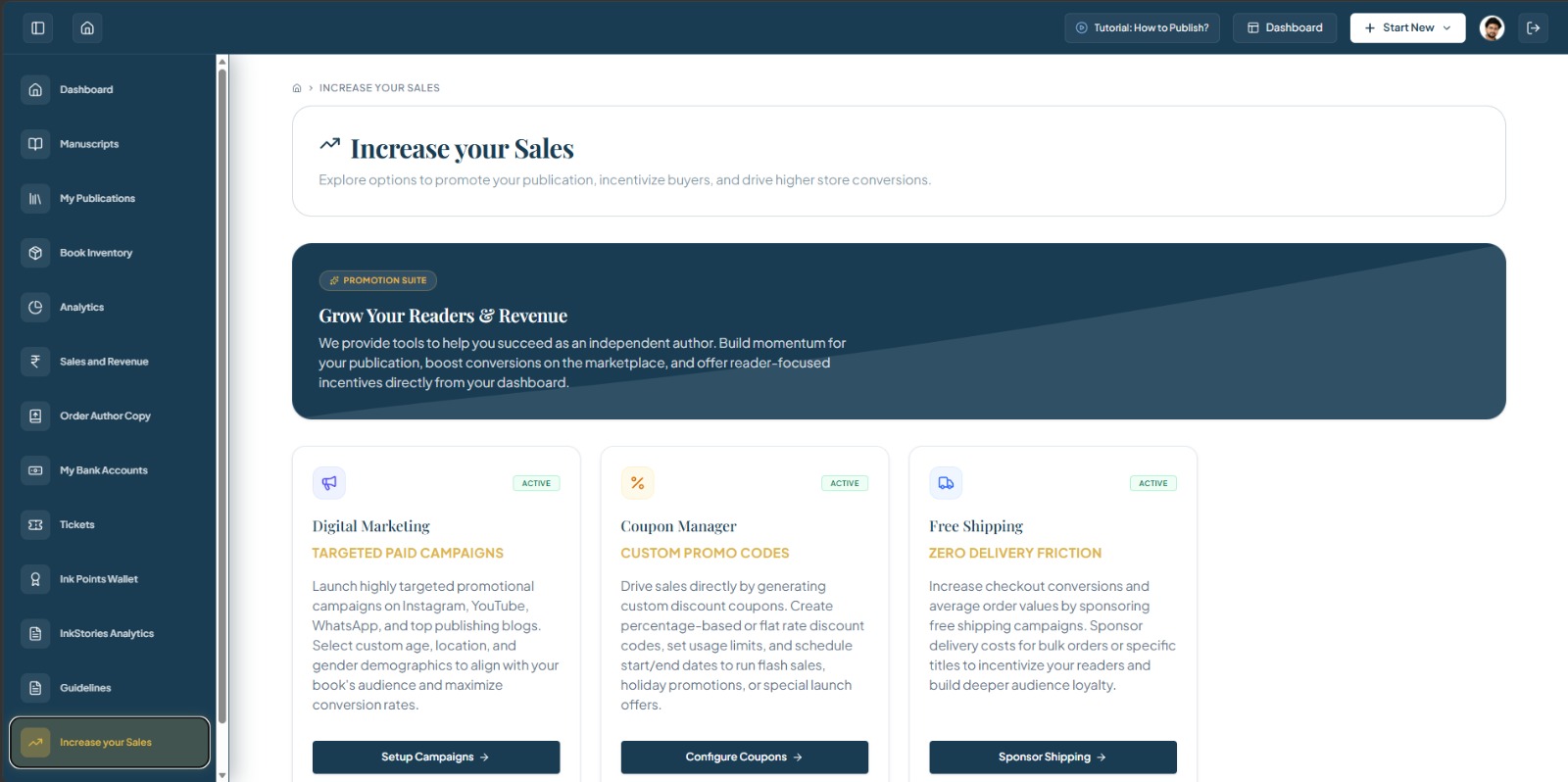
Promotion Suite
The Promotion Suite contains tools designed to help authors promote their publications, incentivize buyers, and improve store conversions.
Digital Marketing
Digital Marketing allows authors to launch targeted promotional campaigns for their publications.
Coupon Manager
Coupon Manager allows authors to create promotional discount codes that can be used to encourage purchases.
Free Shipping
Free Shipping allows eligible promotions to reduce delivery-related friction for buyers by sponsoring shipping costs.
Setup Campaigns
Select Setup Campaigns to begin configuring a promotional campaign.
Configure Coupons
Select Configure Coupons to create or manage promotional coupon settings.
Sponsor Shipping
Select Sponsor Shipping to configure a free-shipping promotion.
Promotion Suite
"The Promotion Suite contains tools designed to help authors promote their publications, incentivize buyers, and improve store conversions."
The dashboard currently provides three options. Please note that these tools are designed to support your promotional efforts and do not guarantee increased sales.
Digital Marketing
Targeted Paid Campaigns
Digital Marketing allows authors to launch targeted promotional campaigns for their publications.
The interface mentions promotional campaigns across:
- YouTube
- publishing blogs
It also mentions targeting based on:
- age
- location
- demographics
Setup Campaigns
Select Setup Campaigns to begin configuring a promotional campaign.
Coupon Manager
Custom Promo Codes
Coupon Manager allows authors to create promotional discount codes that can be used to encourage purchases.
The dashboard indicates that authors can configure:
- percentage-based discounts
- flat-rate discounts
- usage limits
- start dates
- end dates
- flash sales
- holiday promotions
- special launch offers
Coupons can be used as a sales incentive.
Configure Coupons
Select Configure Coupons to create or manage promotional coupon settings.
Free Shipping
Zero Delivery Friction
Free Shipping allows eligible promotions to reduce delivery-related friction for buyers by sponsoring shipping costs.
The dashboard explains that authors can use sponsored shipping to:
- increase checkout conversions
- potentially increase average order values
- sponsor delivery costs for bulk orders
- sponsor delivery costs for specific titles
- incentivize readers
- build audience loyalty
Sponsor Shipping
Select Sponsor Shipping to configure a free-shipping promotion.
Which Tool Should I Use?
Digital Marketing
Best for:
Reaching new audiences and increasing book visibility.
Coupon Manager
Best for:
Giving buyers a promotional price incentive.
Free Shipping
Best for:
Reducing delivery friction during checkout.
Authors can choose the promotional approach that best matches their current sales objective.
Quick Guide
Before Creating a Promotion
Review the available settings and applicable costs, limits, and eligibility requirements before activating a promotion.
Common Questions
What can I use Increase Your Sales for?
Use the section to access promotional tools for marketing books, offering discounts, and reducing shipping friction.
What is Digital Marketing?
It provides targeted paid campaign options for promoting publications.
What is Coupon Manager?
It allows authors to configure promotional discount codes.
What is Free Shipping?
It provides an option to sponsor delivery costs for eligible orders or titles.
Will these tools guarantee more sales?
No. These tools are designed to support promotion and conversion, but sales results depend on factors such as audience, pricing, book positioning, campaign setup, and buyer demand.
Where do I start?
Choose the promotional tool that matches your goal:
- Visibility → Digital Marketing
- Discount → Coupon Manager
- Shipping incentive → Free Shipping
Digital Marketing
Create targeted promotional campaigns for your books and reach readers across multiple marketing channels.
Digital Marketing allows authors to promote a published book through paid promotional services across platforms such as Instagram, YouTube, WhatsApp Channel, Blog Promotion, and LinkedIn. Authors can select a publication, choose available marketing services, optionally customize ad spend/audience targeting, review the campaign investment, and proceed to payment.
How it works
- Select your publication
- Choose marketing services
- Review campaign cost and complete payment
Step 1: Select Your Publication
Start a new digital marketing campaign by selecting the book or module you want to promote.
Instructions:
- Open Digital Marketing from Increase Your Sales.
- Start a New Campaign.
- Choose whether you are promoting a Book or Module.
- Select the publication you want to advertise.
- Once a publication is selected, continue using "Next: Choose Services".
Important: You must select a publication before moving to the marketing-services step.

Step 1 — Select your publication
Visible UI Elements:
- New Campaign header
- Campaign progress indicator
- Step 1: Select Publication
- Step 2: Marketing Services
- Step 3: Payment & Summary
- Target Publication section
- Books / Modules toggle
- Available publication card
- Publication title & Author name
- Selection radio/checkbox
- "Next: Choose Services" button
Step 2: Choose Marketing Services
Select one or more promotional services based on how you want to market your publication.

Step 2 — Choose marketing services

Step 2 — Review selected services and campaign cost
Understanding the Campaign Services Table
Each available service appears as a separate row and the author can select the services they want to purchase. The table includes:
Service Examples
Examples of services displayed in the current interface include:
- Instagram — Author Highlight Book Post
- Instagram — Motion Graphic Book Promo Reel
- Instagram — Author Interview Book Reel
- Instagram — Book Introduction Voice-Over Reel
- YouTube — Book Promo Shorts
- YouTube — Author Highlight Book Shorts
- YouTube — Author Interview Book Shorts
- WhatsApp Channel — Author Highlight Book Post
- WhatsApp Channel — Book Promo Reel Post
- Blog Promotion — Detailed Blog Post for Book Promotion
- LinkedIn — Author Highlight Book Post
Pricing
Each service can have a base cost and, where applicable, a setup cost. The total campaign cost updates based on selected services and additional advertising spend.
Want Ads? & Ad Spend
Some services allow the author to opt into additional advertising spend. When enabled, the author can enter an ad-spend amount. Ad Spend is an additional promotional budget added to the selected service where supported. It contributes to the campaign total.
The Total Column
The total reflects the cost associated with that selected service, including applicable base/setup cost and ad spend.
Campaign Total
The "TOTAL CAMPAIGN COST" at the bottom updates as selections are changed.
Customize Ad Target Audience & Location
The dashboard shows an option to "Customize Ad Target Audience & Location (Default: All over India)". Authors can optionally customize the intended advertising audience and location instead of using the default targeting.
Instructions:
- Review the available marketing services.
- Select the checkbox for each service you want.
- Review the base and setup costs.
- If the selected service supports advertising, enable "Want Ads?".
- Enter the desired ad spend where available.
- Review the updated total campaign cost.
- Optionally customize the ad target audience and location.
- Continue to "Review & Pay".
Practical Tip: Select services according to your promotional objective instead of selecting every available service. Always review the final campaign cost before proceeding.
Step 3: Review & Pay
Before payment, the dashboard provides a final summary of the selected publication, marketing services, advertising spend, taxes, and total investment.

Step 3 — Review campaign summary before payment
Cost Components
- Services Base Cost:
- The combined base price of the selected marketing services.
- Ad Setup Fees:
- Applicable setup charges associated with advertising services.
- Total Allocated Ad Spend:
- The advertising budget allocated to services where ad spending has been enabled.
- Subtotal:
- The campaign amount before applicable tax.
- GST:
- Applicable GST calculated on the campaign charges.
- Total Investment:
- The final amount payable for the campaign.
Instructions:
- Confirm that the correct book/module is displayed.
- Review every selected marketing service.
- Verify the platform shown for each service.
- Check the base cost and any setup fees.
- Review the allocated ad spend.
- Check the subtotal and GST.
- Confirm the Total Investment.
- If something is incorrect, use "Back to Services" and modify the campaign.
- If everything is correct, select "Complete Payment".
Warning: Always verify the final Total Investment before completing payment. Once payment is completed, campaign changes may depend on the platform's campaign/payment rules.
Quick Workflow
Select Publication
Choose the book or module you want to promote.
Choose Services
Select promotional services and configure supported ad spend/targeting.
Review & Pay
Verify services, fees, ad spend, GST, and total investment before payment.
Understanding Campaign Costs
What is the Base Cost?
What is the Setup Cost?
What is Ad Spend?
Why does the Total Campaign Cost change?
What is Total Investment?
Before You Pay
- Correct publication selected
- Required marketing services selected
- Service platform verified
- Base/setup charges reviewed
- Ad spend reviewed where applicable
- Audience/location settings reviewed
- GST and final Total Investment checked
Coupon Manager
Create and manage promotional coupon codes for your books and modules.
Coupon Manager lets you create promotional discount campaigns for your publications, generate coupon codes, control how those codes can be redeemed, and share or manage active codes from your dashboard.
How it works
- Choose coupon type
- Select publication
- Name your campaign
- Configure and activate coupon codes
Coupon Manager Dashboard

Coupon Manager Dashboard
Summary Cards
- Active Promo Codes
- Shows the number of currently active promotional coupon codes.
- Total Campaigns
- Shows the number of coupon campaigns created.
- Total Redemptions
- Shows the number of coupon redemptions recorded.
Your Promotion Codes
This section lists coupon campaigns created for books and modules.
Table Columns:
- Campaign Name
- Applicable Item
- Type
- Discount
- Usage / Limit
- Total Codes
- Actions
Example Campaign Row:
| Campaign Name: | dawd |
|---|---|
| Applicable Item: | Demo book 22 |
| Type: | Single Order |
| Discount: | 40% OFF |
| Usage / Limit: | 0 / 10 |
| Total Codes: | 10 Codes |
| Action: | View Codes |
These are sample data displayed in the interface, not fixed product defaults.
Create Coupon
To create a new promotional campaign, select "Create Coupon".
Managing an Existing Coupon Campaign
After selecting "View Codes" for a campaign, the author can view and manage the individual coupon codes generated under that campaign.

Campaign Code Management
Header Information
- Campaign name
- Description indicating that the page contains codes generated under the promotional campaign
- Export to Excel action
- Share Campaign action
Campaign Summary Card
- Applicable Title
- Discount & Type
- Redemptions Status
- Total Generated Codes
Generated Coupon Codes Table
For each generated coupon code, the author can see:
Available Actions
- COPY:
- Copies the selected coupon code for use elsewhere.
- SHARE:
- Allows the author to share the individual coupon code.
- EXPORT TO EXCEL:
- Exports the campaign's coupon-code data.
- SHARE CAMPAIGN:
- Provides a campaign-level sharing action.
Important: Keep coupon codes private when the promotion is intended for a specific audience. Share them only through the channels you intend to use for the campaign.
Creating a Coupon Campaign
Select "Create Coupon" from the Coupon Manager dashboard to open the Coupon Generator Wizard. The wizard contains four steps:
Step 1: Choose Coupon Type
"Choose the usage model for your coupon campaign. The selected coupon type determines how the generated codes can be redeemed."
Single Order Coupon
This coupon is intended for a single transaction globally. Once any customer uses it, it is automatically deactivated.
Redemption Limit: 1 Global Checkout
Multiuse Coupon
This coupon can be used multiple times. The campaign can have a configurable redemption threshold. (For example, a coupon could be valid for the first 50 transactions).
Redemption Limit: Customizable
Bulk Use Coupon
This option is designed for high-volume campaigns or broader distribution where a higher redemption threshold or unlimited campaign distribution may be appropriate.
Redemption Limit: High Threshold

Step 1 — Choose Coupon Type
Instructions:
Select the coupon type that matches the intended promotion before continuing, then click "Next Step".
Step 2: Select the Publication

Step 2 — Select Publication
Choose the book or educational module that the coupon should apply to. The interface also indicates that coupons can be generated for all publications where supported.
Publication Card Details
The interface displays tabs for Books and eModules. Each publication card shows:
- Publication cover
- Publication title (e.g. Demo book 22)
- Format (e.g. Print)
- Price (e.g. ₹500)
Note: These are visible examples and not fixed prices.
Instructions:
- Select Books or eModules.
- Find the publication you want to promote.
- Select the publication card.
- Continue with "Next Step".
Important: Make sure the correct publication is selected because the coupon will be associated with the selected publication.
Step 3: Name Your Campaign
Give the coupon campaign a recognizable name so that you can identify and manage it later from the Coupon Manager dashboard.
Visible Field
The campaign name is for organizing and tracking the promotion. Avoid using vague names that will make future campaign management difficult.
Good examples:
- Diwali Flash Sale
- Student Discount Campaign
- Book Launch Offer
- Festival Promotion
Instructions:
- Enter a clear campaign name.
- Use a name that helps you understand the purpose of the promotion.
- Select "Next Step".

Step 3 — Campaign Settings
Step 4: Configure & Activate
This is where the author defines the coupon discount, number of codes, and coupon code.

Step 4 — Configure & Activate
Discount Percentage
Use the discount control to define the percentage discount offered through the coupon. The interface provides a slider, a percentage value, and a numeric input.
Example shown: 15% OFF (not a default or mandatory value).
Number of Coupon Codes to Generate
Specify how many unique coupon codes should be generated.
Coupon Code
Enter or configure the coupon code shown in the field. The code must follow the format accepted by the interface.
Campaign Summary
The summary panel on the right allows the author to verify the configuration before activation. It displays:
- Coupon Code
- Discount Value
- Applicable Title(s)
- Usage Limit
Pricing & Royalty Projection
This panel provides an estimate of how the configured discount affects the publication price and projected royalty. It displays:
- Original Price
- Discounted Price (MRP)
- Format
- Projected Royalty per Sale
Note: Values shown are projected estimates, not guaranteed earnings. Example values in screenshots are not fixed pricing.
Review and Activate
Before activation, verify the following details:
If everything is correct, select:
This creates/activates the configured coupon campaign according to the selected settings.
After You Activate a Coupon
The created campaign becomes available from the Coupon Manager dashboard. The author can then:
- View the campaign
- View generated codes
- Check redemption counts
- Check code status
- Copy individual codes
- Share individual codes
- Share the campaign
- Export info (where supported)
Overall Workflow
Coupon Type Quick Guide
SINGLE ORDER
Best when each code should be used once.
MULTIUSE
Best when a campaign should allow controlled repeated redemptions.
BULK USE
Best for broader/high-volume promotional distribution.
Choose the coupon model based on how you want customers to redeem the promotion.
Coupon Manager FAQs
What is a coupon campaign?
Can I create coupons for books and modules?
What is the difference between Single Order, Multiuse, and Bulk Use?
Can I manage individual coupon codes?
Can I export coupon codes?
Can I share a coupon?
Can I change a coupon's active status?
Free Shipping Sponsorship
Sponsor shipping costs to waive delivery charges for your readers and boost checkout conversion rates.
Free Shipping Overview
"Eliminate delivery friction! By sponsoring free shipping, you pay a ₹0 delivery charge for buyers anywhere in India. This incentive is proven to increase conversion rates by up to 25%."
Instructions:
The + New Campaign button opens the Free Shipping Campaign creation form.
Free Shipping Campaigns
No Free Shipping Campaigns
When no campaigns have been created yet, the page displays this empty state:
"You haven't sponsored any free shipping campaigns yet. Create one now to start waiving delivery fees for your readers!"
The author can start the first campaign either through New Campaign or Create Your First Campaign. Both actions lead to campaign creation.

Free Shipping Sponsorship Dashboard
Before Creating a Campaign
Create Free Shipping Campaign
Use "Back to List" to return to the Free Shipping campaign listing page without proceeding with campaign creation.
"Fill in the details below to sponsor free delivery for one of your titles. Shipping fees will automatically be waived (₹0) at checkout."
Select Publication
Select the publication for which you want to sponsor free shipping.
IMPORTANT ELIGIBILITY RULE:
The interface explicitly states: "Only physical Print books are applicable. Ebooks & Digital Modules do not have shipping charges."
- Physical Print books → eligible
- Ebooks → not applicable
- Digital Modules → not applicable
Campaign Active Until (End Date)
Select the date until which the free shipping campaign should remain active.
- The campaign has an end date.
- The free shipping waiver automatically terminates at the end of the selected date.
- Authors should select an end date that matches the intended promotional period.

Create Free Shipping Campaign
Financial Sponsoring Information:
"Sponsoring free shipping waives delivery charges for the buyer. The shipping cost (determined dynamically by regional tier at checkout) will be covered by you as a marketing expense. This cost will be deducted from your royalties."
When an author sponsors free shipping:
- The buyer does not pay the delivery charge.
- The shipping cost is determined dynamically based on the applicable regional tier at checkout.
- The author bears this shipping expense.
- The shipping cost is treated as a marketing expense.
- The cost is deducted from the author's royalties.
Important: Shipping cost is not fixed. It is determined dynamically by regional tier at checkout.
Start Campaign
Before starting the campaign, the author should verify publication format, end date, and understand the financial impact on royalties.
This starts the free shipping campaign according to the selected publication and end date.
How Free Shipping Sponsorship Works
Example Free Shipping Campaign
Free Shipping FAQs
What is Free Shipping Sponsorship?
Which publications are eligible?
Who pays for the shipping?
Is the shipping cost fixed?
Does the buyer pay the delivery charge?
Where does the shipping cost get deducted?
Can I set an end date?
What happens when the end date is reached?
Can I use Free Shipping for an Ebook?
Can I use Free Shipping for a Digital Module?
Campaign Leaderboards
Detailed documentation for Campaign Leaderboards will be available here.
Campaign Leaderboards Overview
Image Space for Campaign Leaderboards
Save your screenshot at: /images/dashboard-guide/campaign-leaderboards.png

We are currently working on detailed text documentation for this section.